Wednesday, June 9, 2010

Sunday, June 6, 2010
Upload Clipboard Content To FTP Server Quickly Using Clupper
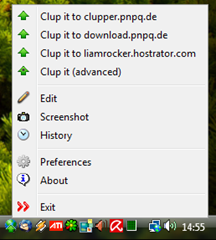
Clupper is the application does this. Once launched, it’s waiting for the upload action in the system tray. You can upload files, folders by copy to the Clipboard. If the content in Clipboard is text, it automatically convert that content into a HTML file before uploading.
More about Clupper, read Upload Windows clipboard content to FTP server with Clupper
Related posts
- Compare And Merge Documents Online Using CompareMyDocs
- Convert Files Between Common Formats Quickly Using File Blender
- CloudBerry Explorer - A Great Application For Amazon S3
- Store, Sync, And Share Your Files Online The Simplest Way With Dropbox
- RJ TextEd - A Swiss Army Knife Text Editor For Developers


How To Choose The Preferred Browser To Open A Link

Browser Chooser is a small utility that will scan for installed browser on your computer, and list them out whenever you open a link. Then, you simply click the preferred to browse that link.

Frankly, it may be a mess if you don’t have multiple browsers or don’t want to switch between them. Otherwise, it’s a great utility especially for web developers or designers who want to test their sites on various browsers.


Capture Screenshots On Your Screen Using Snipper
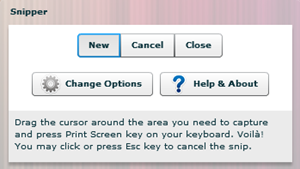
Snipper is one of AIR applications recently join the competition of image capturers. Amazingly it can capture what’s on your screen as fast and effectively as a utility written by a native programming language on Windows such as C#.
You can capture the screenshot, then save it into Clipboard or save it in a PNG or JPEG file. You can also paste it onto applications such as Word, Photoshop, Paint same as other captures.
More about Snipper, read Snipper is a Desktop Screen Capture Tool
Related posts
- How To Take Screenshots Right In Word 2010
- Capture Screenshots With Minimal Intervention Using Screenshot Captor
- Create Your Own Hotkey On Windows Using WinHotKey
- Create Shortcuts On Windows Smarter Using Advanced Shortcuts Composer
- SnagIt Reviews - More than 40 Ways to Capture Your Screen!

